

Forwarding Overview
Beacon streams endpoint events to Datadog by writing local JSONL and letting the Datadog Agent tail that file. Beacon does not store Datadog API keys or site configuration. Use this guide for a first-time macOS setup with Datadog Logs. You can complete the setup entirely from the command line; the Datadog UI steps below are optional and are included to show where the same values appear in the Datadog onboarding flow.What You Need
- Beacon CLI installed.
- Datadog Agent installed and connected to your Datadog organization.
- Permission to edit
/opt/datadog-agent/etc/datadog.yamland restart the Datadog Agent.
Choose User Or System Mode
For production or MDM deployment, prefer system mode. It avoids per-user home-directory permissions because the Datadog Agent can tail
/var/log/beacon-agent/runtime.jsonl.
1. Install Beacon And Confirm Logs
For local testing:Set up local testing
Use system mode

Confirm Beacon is writing a runtime JSONL log.
2. Enable Datadog Log Collection
Open the Datadog Agent config:Open the Datadog Agent config
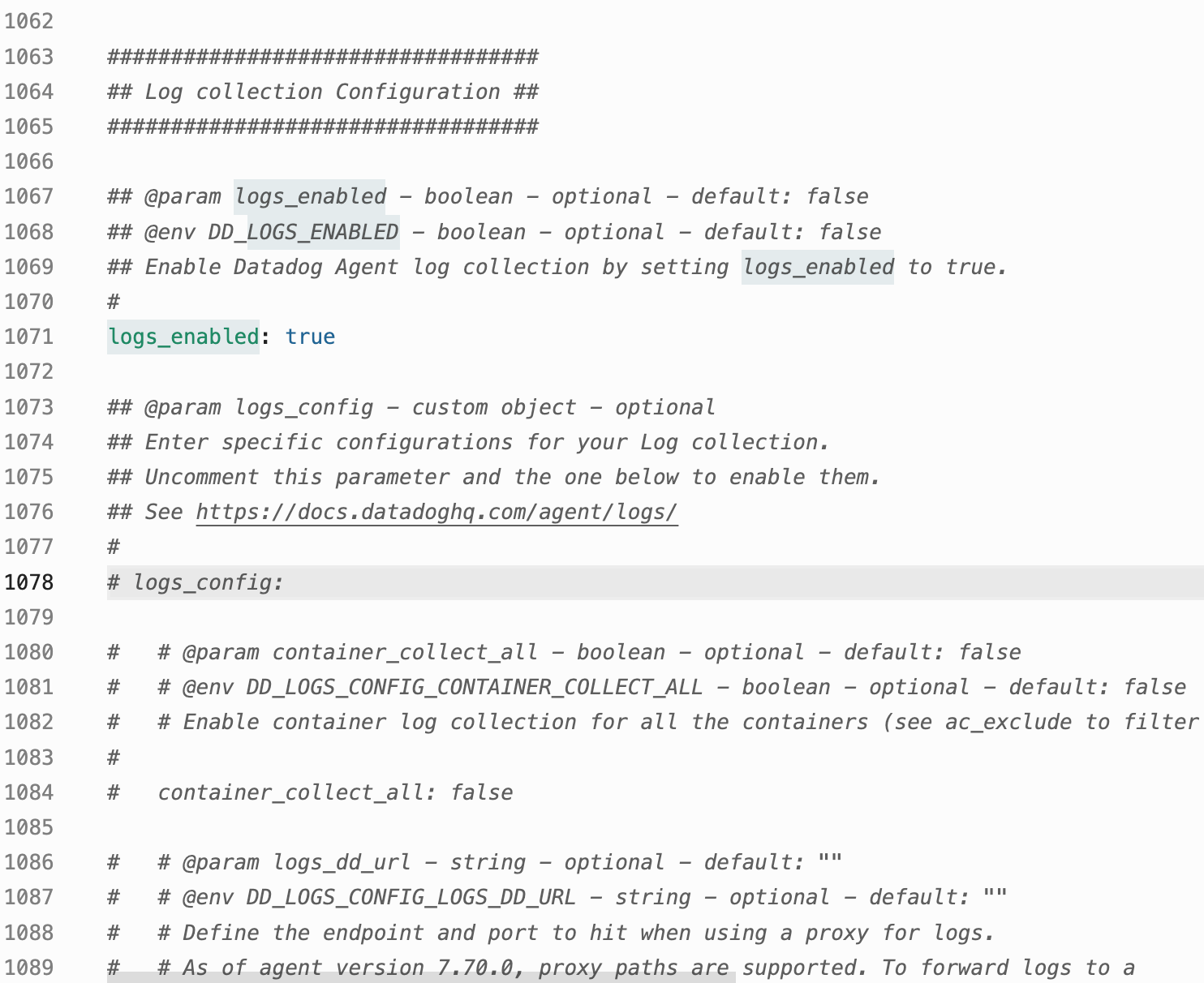
Enable log collection in datadog.yaml.
3. Optional: Review Custom File Logs In Datadog
This step is optional. Beacon generates the Datadog Agent config in the next step, so you do not need to copy anything manually from the Datadog UI. If you want to see where the values come from in Datadog, open Logs > Add a Log Source.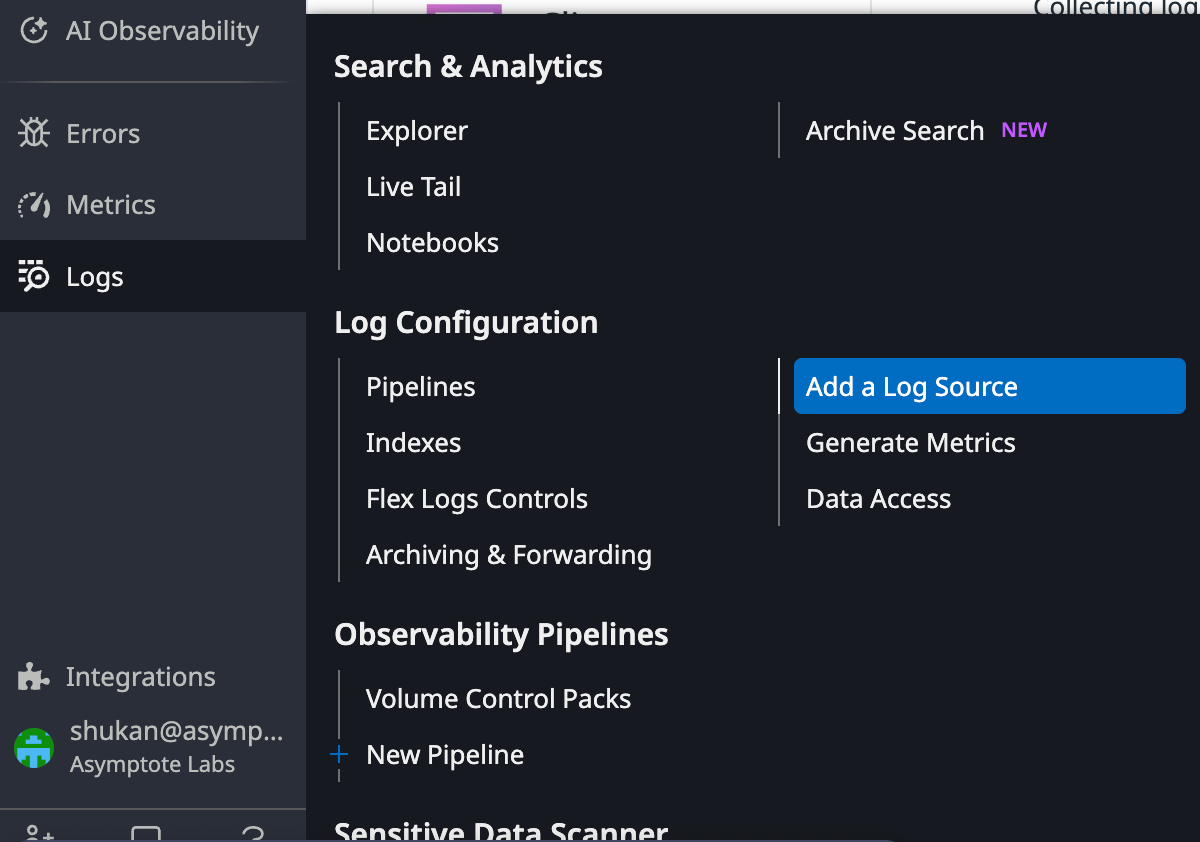
Open Logs > Add a Log Source in Datadog.
Leave multiline parsing blank. Beacon writes one JSON event per line.
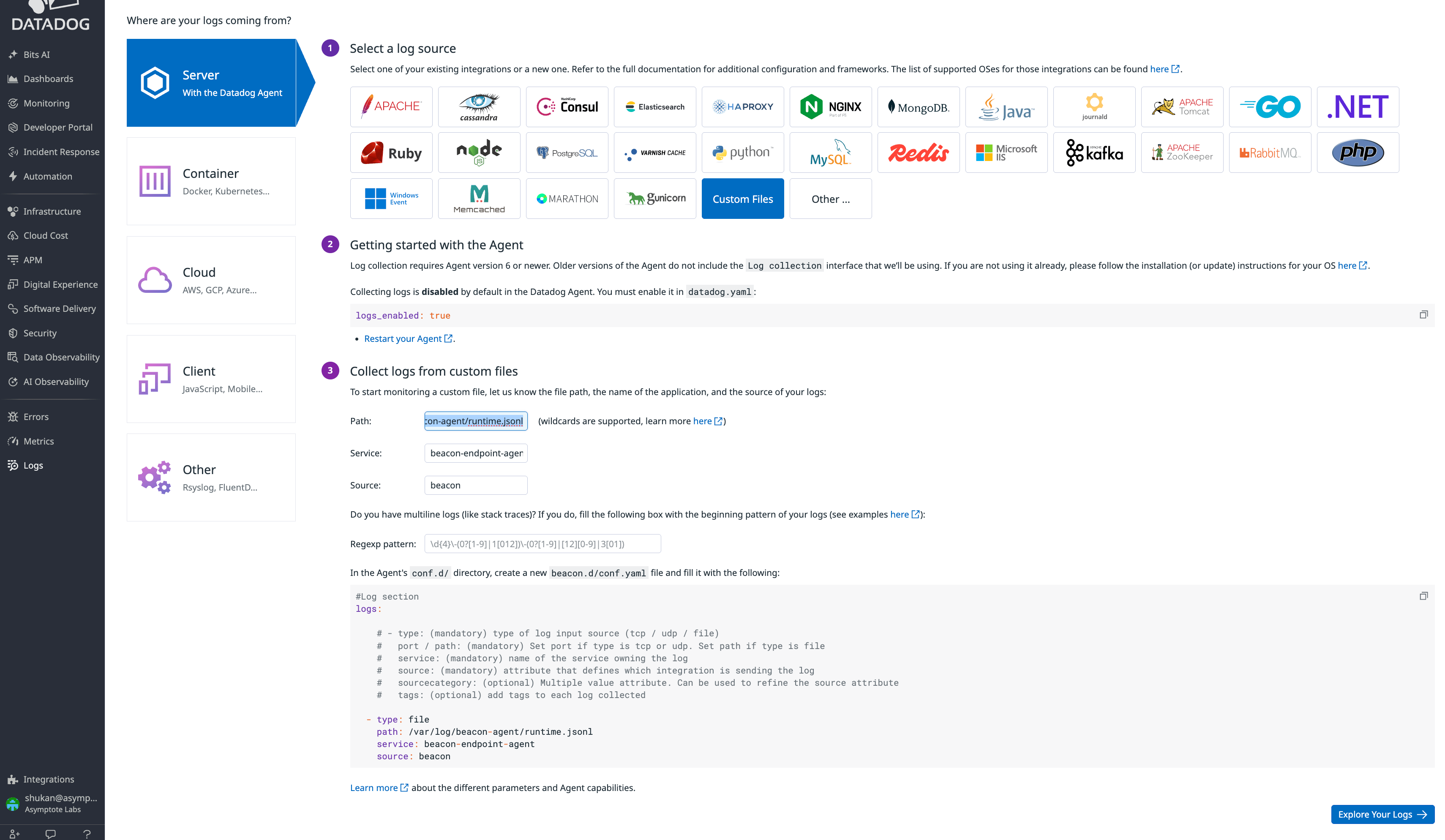
Configure Datadog's Custom Files source for Beacon.
4. Generate And Install The Beacon Config
Generate Beacon’s Datadog content pack:Generate Beacon's Datadog content pack
Use system mode

Generate the Beacon Datadog content pack.
Install the generated Datadog Agent config and restart the Agent
5. Validate End To End
Write a test event:Write a test event
Use system mode

Write a Beacon Datadog validation event.
Check Datadog Agent status
beaconStatus: OKService: beacon-endpoint-agentSource: beaconLogsProcessedandLogsSentgreater than zero
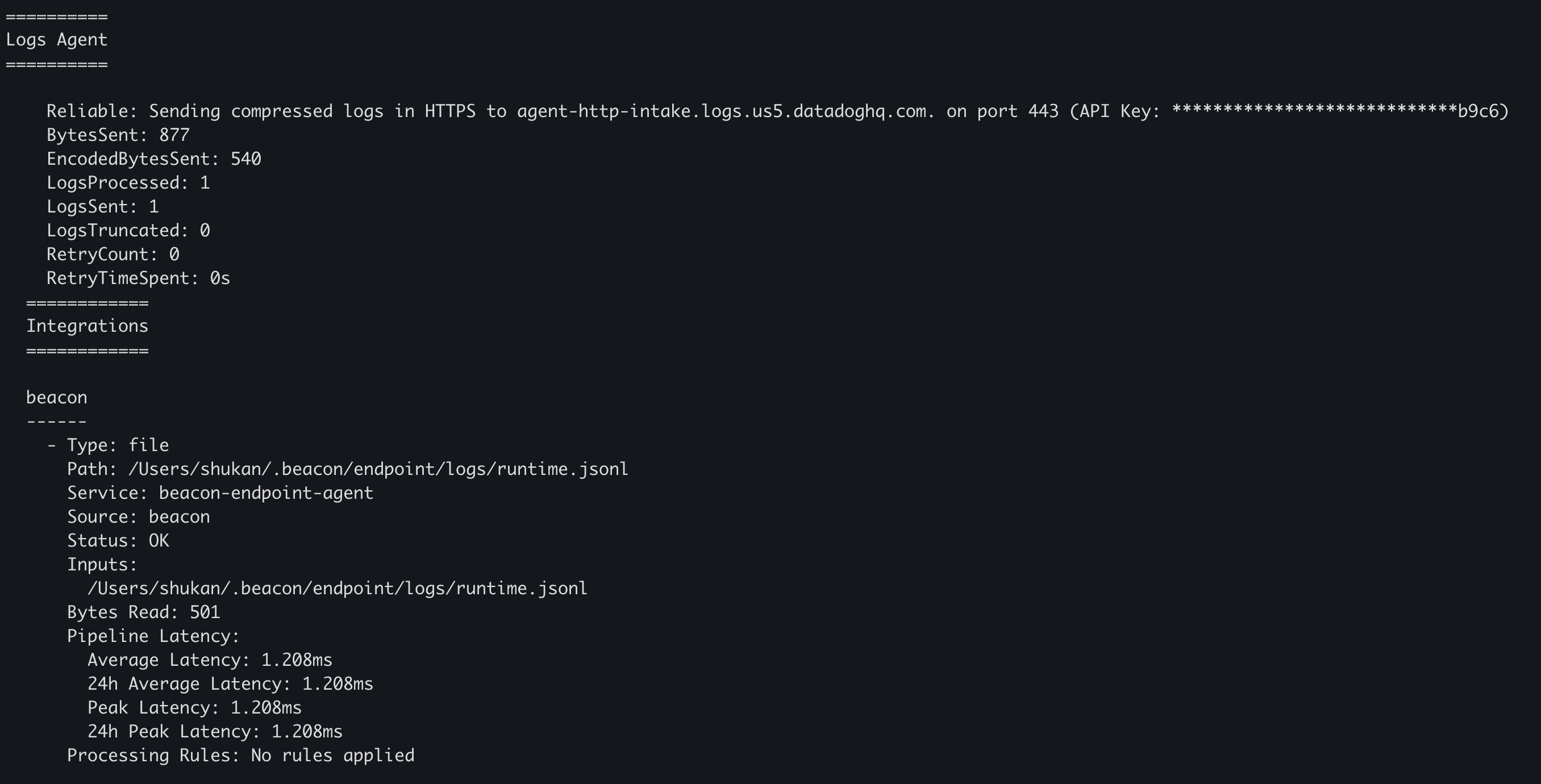
Datadog Agent status should show the Beacon log source as OK.
6. Search In Datadog
In Datadog Log Explorer, search for: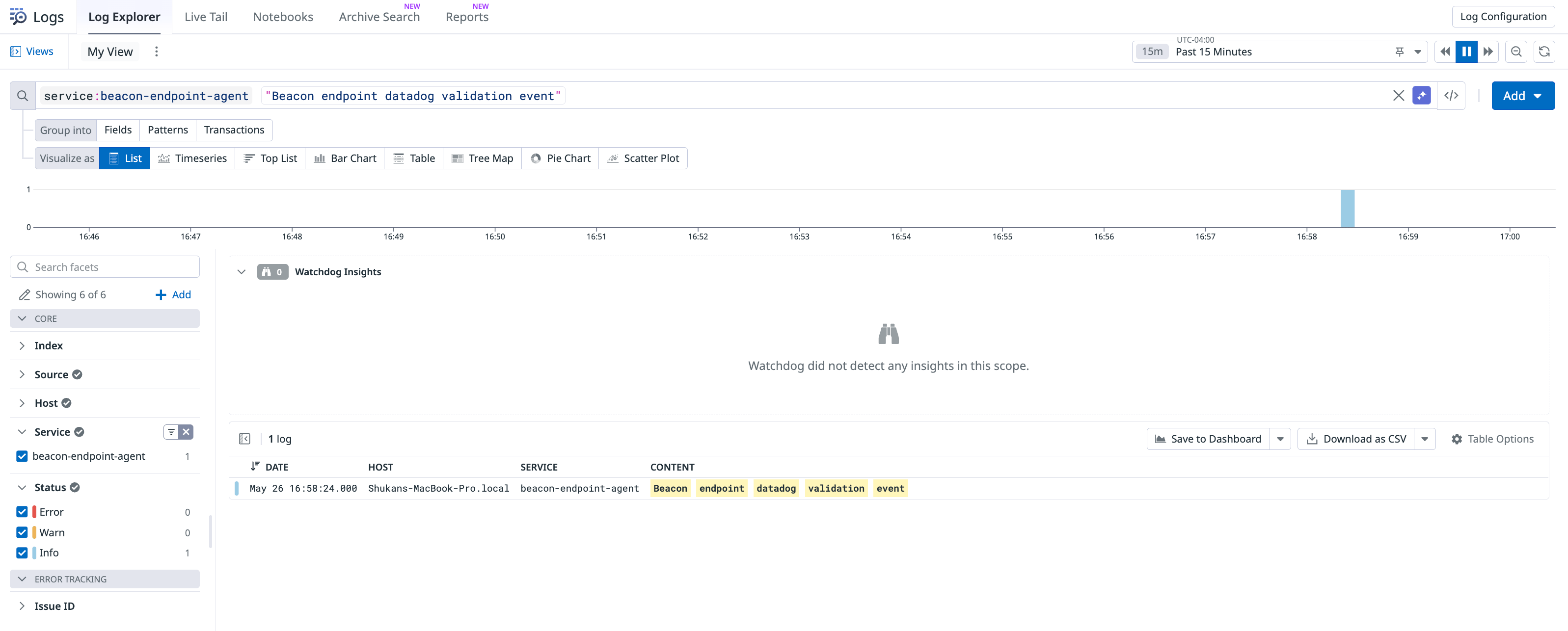
Search for the Beacon validation event in Datadog Log Explorer.
service:beacon-endpoint-agent. Expanding a log shows the normalized Beacon fields such as event.action, harness.name, prompt.text, content.retention, repository, and session.
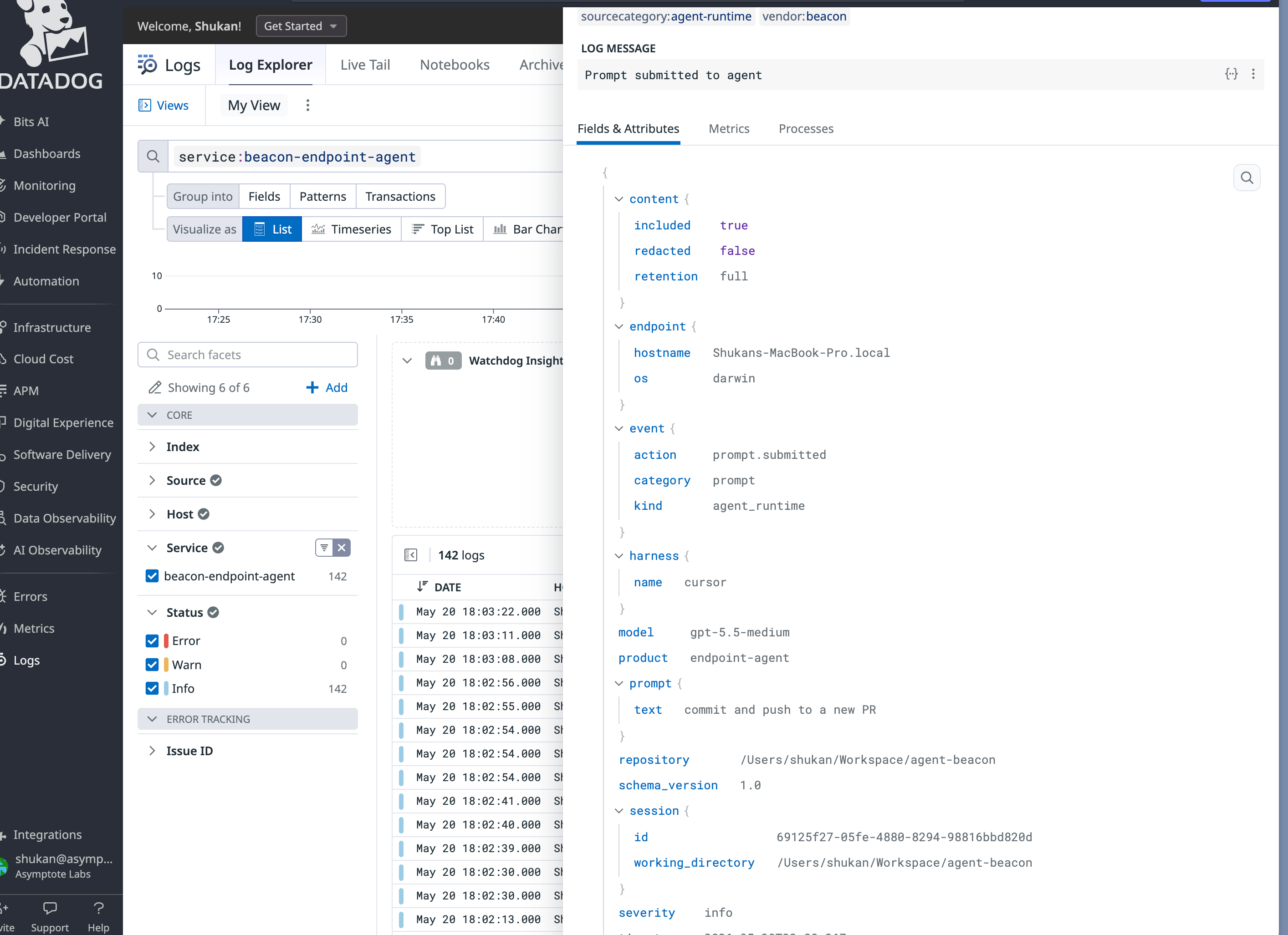
Beacon events in Datadog include the normalized JSON fields for investigation.
Troubleshooting
If Datadog status showspermission denied, the Agent cannot read the runtime log. The Datadog Agent usually runs as _dd-agent.
For local user testing, either grant _dd-agent access to the user-mode log path or use system mode instead. For MDM deployment, use system mode so the Agent tails /var/log/beacon-agent/runtime.jsonl.
If Log Explorer is empty:
- Confirm
logs_enabled: true. - Confirm
/opt/datadog-agent/etc/conf.d/beacon.d/conf.yamlexists. - Restart the Agent.
- Run
beacon endpoint datadog validateagain. - Check
sudo datadog-agent status.
Content Handling
Beacon applies redaction, sanitization, truncation, and event-size limits before events are written toruntime.jsonl and tailed by Datadog Agent. Review log access, indexes, retention, and downstream consumers so retained telemetry matches your approved collection policy.
OpenTelemetry Note
Datadog’s DDOT Collector is a good fit for OTel-first Linux or Kubernetes deployments, but Beacon’s macOS endpoint v0 uses native Datadog Agent file log collection because it is the supported host path for tailing local JSONL files.Related
Log forwarding
Review forwarding patterns across Wazuh, Splunk HEC, Elastic, Datadog, and other SIEMs.
Command reference
Review Datadog command syntax and related endpoint commands.
Endpoint event schema
Review normalized Beacon JSONL fields and example events.
Agent harness integrations
Review supported runtimes, deployment modes, storage, and forwarding.